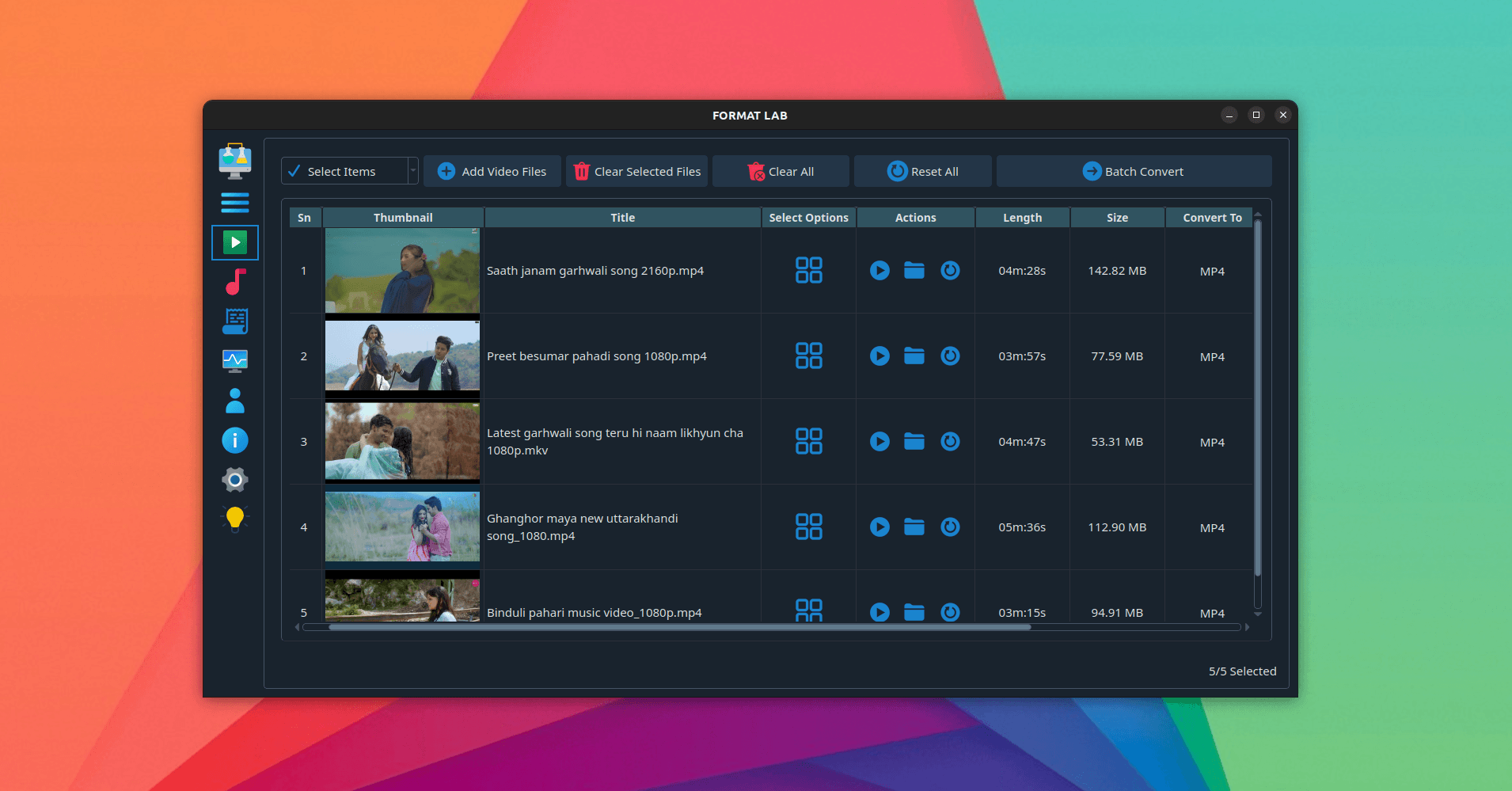
Panda Video Converter is a 4K video and audio converter for Linux, built around speed. It converts, compresses and extracts audio through a modern interface, uses GPU hardware acceleration for the heavy work, and does all of it locally with FFmpeg underneath.
What Panda does
- Convert popular video and audio formats — MP4, MKV and MOV through to MP3, FLAC and AAC.
- Extract audio from any video file at high quality.
- Control resolution, bitrate and frame rate — precise output rather than a single "quality" slider.
- Surround sound — 5.1 and 7.1 supported.
- GPU hardware acceleration — for conversions that finish while you are still interested.
- Batch conversion — process many files at once.
- Drag and drop media straight into the app.
- Built-in CPU monitor — watch what a big encode is doing to your machine in real time.
- Lossless compression — where preserving the original matters more than the file size.
It handles 4K, 8K and HDR footage, and the interface is built for people who should never have to meet a command-line flag.
Supported formats
Video: MP4, MKV, MOV, AVI, WebM, WMV, FLV, MPEG, MPG, M2TS, 3GP, VOB, TS, OGV, F4V, MXF, HEVC, M2V, MTS, WTV and more.
Audio: AAC, MP3, WAV, FLAC, M4A, OGG, WMA, Opus, AIFF, DTS, AC3, MP2, VOC, RA, TTA, WV, CAF and M4R.
Installing Panda on Linux
From the Snap Store:
sudo snap install panda-video-converter
That works on Ubuntu, Debian, Fedora, Arch, Linux Mint, Pop!_OS and any other distribution with Snap support — the package brings its own dependencies, so there is no version to match.
Installing on Windows
Windows 10 and 11, 64-bit. The installer is published with each GitHub release, and the download button at the top of this page always points at the current build.
Why the queue matters
Conversion is the kind of job you want to start and walk away from. Files stack up as a to-do list and get worked through in order, rather than one at a time while you sit and watch a progress bar. Combined with GPU acceleration, that is the difference between converting a folder of footage over lunch and converting it over an afternoon.
Frequently asked questions
Does it use my GPU?
Yes, where your hardware and drivers support it. GPU acceleration together with multi-core CPU support is what makes 4K and 8K encodes practical on a desktop machine.
Are my files uploaded anywhere?
No. Everything runs on your own machine, so file size and privacy are not somebody else's decision.
Can it handle 4K and HDR?
Yes — 4K, 8K and HDR sources are supported.
Is it free?
Free to download and use, with a one-time Pro upgrade and no subscription. See plans and pricing.
Related write-ups
FormatLab is the sister converter, with a wider format list and a compression-first workflow. For getting the video in the first place, see 4KTUBE.